Why Backing Up Your Phone Matters
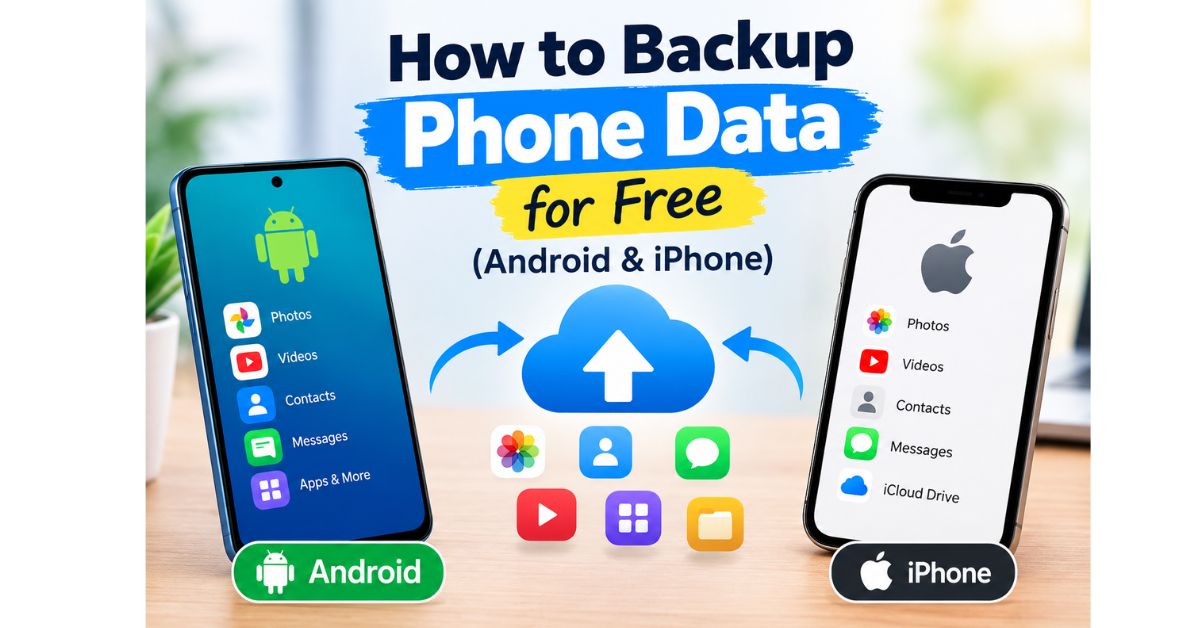
Phones get lost, stolen, dropped, or simply stop working, and when that happens, everything stored only on the device disappears with it. Photos, contacts, messages, and app data can often never be recovered without a backup. Setting up automatic Backup Phone Data for Freetakes only a few minutes but can save years of memories and important information.
Backing Up an Android Phone for Free
Most Android phones are linked to a Google account, which offers free backup options built directly into the system. Open Settings, then System, then Backup, and make sure the backup toggle is switched on. This typically saves app data, call history, and device settings to your Google account automatically.
For photos and videos specifically, Google Photos offers free cloud backup with some storage limits depending on your account and photo quality settings. Open the Google Photos app, go to your profile icon, then Photos settings, and turn on Backup to ensure new photos upload automatically whenever you’re connected to Wi-Fi.
Backing Up an iPhone for Free
iPhones can back up automatically to iCloud, Apple’s cloud storage service, which includes a limited amount of free storage. Go to Settings, tap your name at the top, then iCloud, then iCloud Backup, and make sure it’s turned on. Your iPhone will then back up automatically whenever it’s charging and connected to Wi-Fi.
If your photo and video collection is large, you may run into free storage limits faster on iPhone than Android. In that case, backing up directly to a computer using a USB cable and iTunes or Finder is a free alternative that doesn’t rely on cloud storage limits.
Backing Up to a Computer Instead of the Cloud
For people who prefer not to rely on cloud storage, connecting your phone to a computer with a USB cable allows you to manually copy photos, videos, and documents to a local folder or external hard drive. This method takes more manual effort but avoids ongoing storage limits and keeps a physical copy under your control.
Don’t Forget These Often-Overlooked Items
Beyond photos and contacts, many people forget to back up things like saved WhatsApp or messaging app chats, voice memos, and downloaded documents. Most messaging apps have a separate Backup Phone Data for Free setting within the app itself, often linked to Google Drive on Android or iCloud on iPhone, and it’s worth checking each important app individually.
Frequently Asked Questions
How much free cloud storage do I get for backups?
Both Google and Apple offer a limited amount of free cloud storage, and the exact amount can change over time. If you have a large photo library, you may need to manage storage carefully or consider a paid storage plan.
Will backing up my phone slow it down?
No, backups typically run quietly in the background, usually while charging and connected to Wi-Fi, and shouldn’t noticeably affect everyday performance.
Can I back up my phone without using Wi-Fi?
Most backup services are set to only run over Wi-Fi by default to avoid using mobile data, though this setting can usually be changed if needed.
What happens to my backup if I switch phones?
As long as you sign into the same Google or Apple account on your new phone, most of your backed-up data, including contacts, photos, and app data, will transfer over automatically.
Final Thoughts
Backup Phone Data for Free your phone is one of those tasks that feels unnecessary right up until the moment you desperately need it. Fortunately, both Android and iPhone offer solid free backup tools that require only a one-time setup. Spend a few minutes turning these on today, and you’ll never have to worry about losing your photos or contacts to a lost or broken phone again.